Dunavox Regional Administrator Manual

Original language: English | Automatic translation provided by Google Translate
Last update: 19.03.2026

Purpose of This Document

This manual describes the administrative interface of the Dunavox Global Website Platform and defines the operational responsibilities of authorized country partners.

The document applies exclusively to users with administrative access to their respective country subdomain (e.g., hu.dunavox.com, ro.dunavox.com, de.dunavox.com).

This manual does not cover frontend usage or customer interaction. It is intended solely for internal administrative users of Dunavox partner companies.

Platform Overview

The Dunavox Global Website Platform operates across 30 countries through localized subdomains.

Each country partner is granted restricted administrative access to manage specific operational elements of their country version.

The system operates under a centralized architecture with controlled decentralization, meaning:

  • Core system infrastructure is centrally managed.
  • Country-level business configuration is partner-managed within defined boundaries.
  • Critical system settings remain restricted to HQ-level administration.

Administrative Access

Each country partner receives:

  • A dedicated admin login URL: https://[countrycode].dunavox.com/admin/login
  • Unique user credentials
  • Role-based permissions

Example:

Hungary: https://hu.dunavox.com/admin

Romania: https://ro.dunavox.com/admin

Germany: https://de.dunavox.com/admin

Access is restricted to the assigned country subdomain only.

Administrative access is password-protected and monitored.

Access Scope

Country partner administrators may manage:

  • Localized content (popups, brochure)
  • Translated content: homepage slider, navbar, footer links)
  • Country-specific pricing (if webshop mode is enabled, Winner API)
  • Order processing (webshop countries only)
  • Payment & Shipping methods
  • Local contact information
  • Local legal documents (terms of use, privacy policy)

Country partners may not modify:

  • Core system architecture
  • Global product database structure
  • Other country subdomains
  • Server-level configuration
  • Security policies
  • Product visibility (enabled/disabled status)

Admin user types&permissions:

  • Administrator: Has full access to all system modules, including Products, Sales, Files, Analytics, Marketing, Pages, Users, Logs, and Settings.

  • Marketing Specialist: Has access to content and marketing-related areas, including Products, Files, Marketing tools, and Pages. This role does not have access to Sales, Analytics, Users, Logs, or Settings.

  • Shop Manager: Focuses on operational webshop management. Has access to Products, Sales, and Analytics, but does not have access to Files, Marketing, Pages, Users, Logs, or Settings.

Product Management

The All Products section allows administrators to view and manage the list of products available on the website. This screen provides an overview of all product entries, including product name, product code, image, category, visibility status, SEO status, and QR code.

Administrators can access individual products from this list in order to edit product details, translations, and other product-related settings.

The All Products Management module allows authorized country administrators to:

  • View and manage available products
  • Configure localized product information (Product translations)
  • Export product list in CSV format

Product descriptions and category descriptions can be translated in this section.
The “?” icon displays the original English text for reference.

Only the fields located below the “?” indicator are editable and intended for translation into the local language.

Product prices are managed centrally by Dunavox Kft.
Country administrators do not have permission to modify product pricing.


The Attributes section allows administrators to assign predefined product characteristics to a product. These attributes are used to describe product specifications and help customers better understand the product features.

Attributes are selected from predefined values and can include information such as:

  • Color – Defines the color of the product.
  • Installation Type – Indicates how the product is installed (for example built-in or undercounter).
  • Type of Opening – Specifies the door opening mechanism.
  • Display Type – Indicates the type of display used on the product.

These attributes appear on the product page as part of the product specifications.

Administrators can select or remove attribute values depending on the specific product configuration.

The Variations section allows administrators to create and manage different versions of a product based on selected attributes.

Variation attributes are defined using the Variation Attributes field. Once the desired attributes are selected, the Generate Variants button can be used to automatically create all possible product variations based on the chosen attribute combinations.

Product variations are typically used when a product is available in multiple configurations, such as different colors, sizes, or technical specifications.

The Shipping section allows administrators to define the physical dimensions and weight of the product. This information is used by the system when calculating shipping costs based on configured shipping rules.

The following fields are available:

  • Gross Weight – Specifies the total weight of the product. This value is used when shipping costs are calculated using weight-based shipping rules.
  • Length – Defines the product length.
  • Width – Defines the product width.
  • Height – Defines the product height.

Product dimensions are used to support accurate shipping calculations and logistics handling.

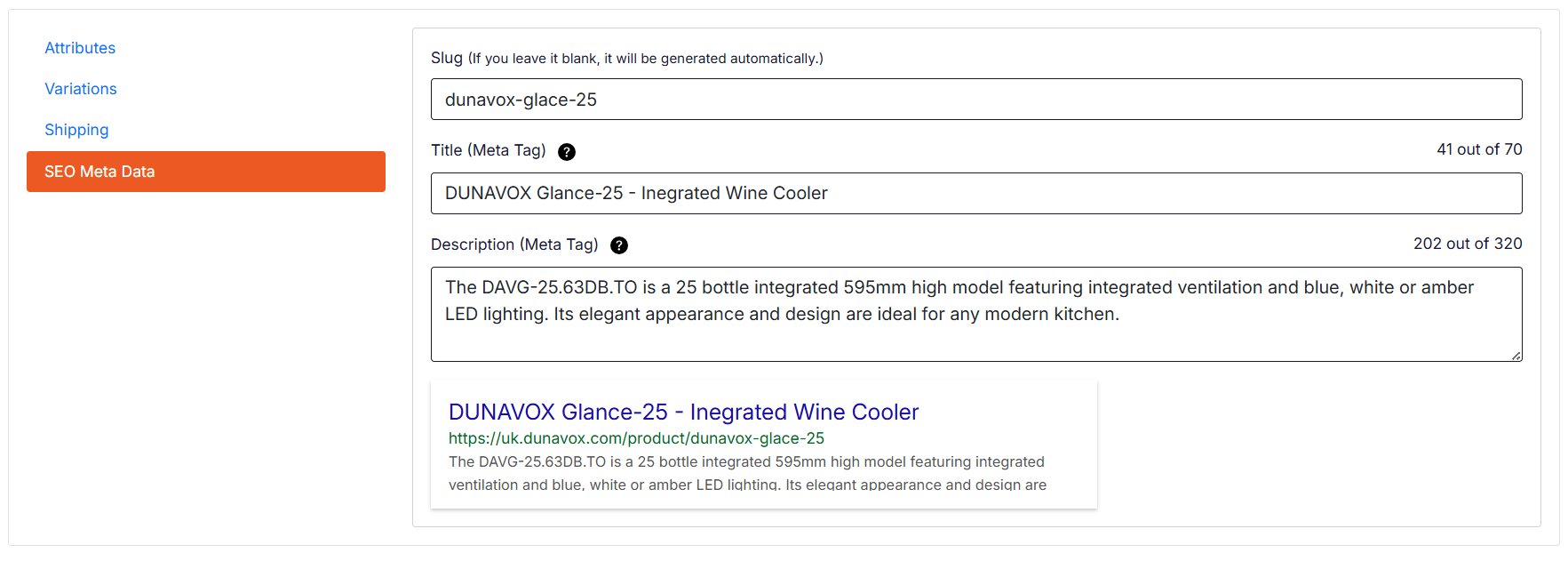
SEO Meta Data is generated automatically but it can be edited manually if needed.

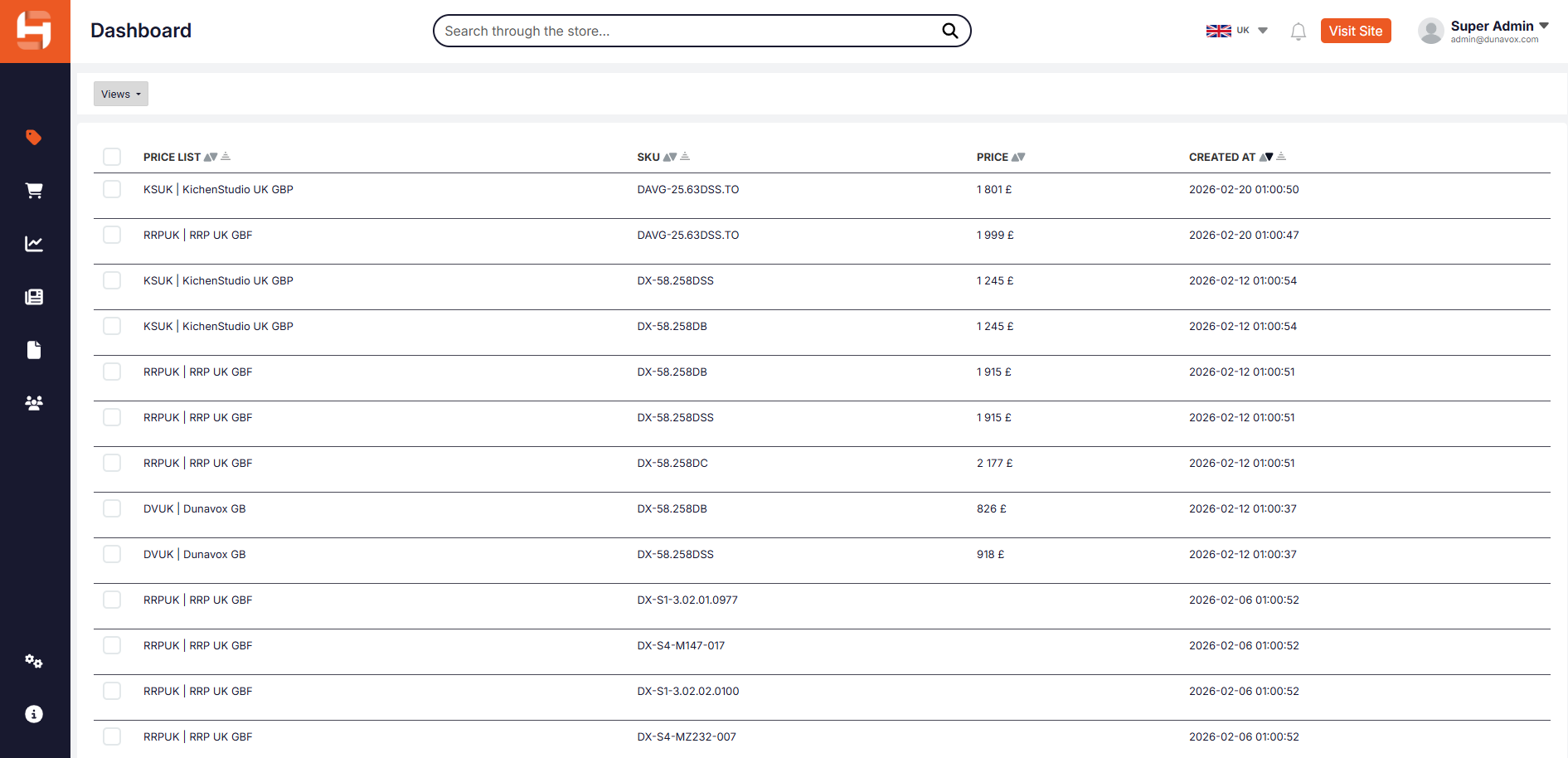
The Prices Management module allows authorized country administrators to:

  • View country-specific pricing (the pricing is loaded automatically from the Winner ERP API)
  • Monitor the prices assigned to products for the selected country

Prices are managed centrally by Dunavox Kft. and cannot be modified from the admin platform. Any requested price changes must be discussed and approved by Dunavox Kft. before they can be applied in the system.

The Categories Management module allows authorized country administrators to:

  • View existing product categories
  • Manage the translations of category names for the local language

Product categories themselves are managed centrally by Dunavox Kft. and cannot be created, modified, or deleted by country administrators.

The Attributes Management module allows authorized country administrators to:

  • View and manage Attribute translations 

The Fields Management module allows authorized country administrators to:

  • View and manage Fields translations

The Files Management module allows authorized country administrators to:

  • View and manage File names
  • Edit file Title translation (ex. Energy Label)

The File Upload module allows administrators to upload and manage media files used on the website, such as images or documents.

Files uploaded in this section can later be selected and used in different parts of the platform, including product pages, news articles, and other content sections.

The screen provides the following options:

  • Upload – Opens the upload interface where files can be added to the system.
  • All Files – Displays the list of all previously uploaded files.
  • Drag & Drop Area – Files can be uploaded by dragging them directly into the upload area.
  • Browse – Allows selecting files manually from the local computer.
  • Upload from URL – Enables uploading a file by providing its direct URL.

The system accepts all file types up to the maximum size indicated on the screen.

Order Management

The Orders Management module allows authorized country administrators to:

  • View orders 
  • Manage Order status

The Payment Methods module allows authorized country administrators to:

  • Manage available payment methods

  • Translate payment method names and descriptions

Administrators can configure which payment options are available for customers during the checkout process.

Status:

The Status setting allows administrators to activate or deactivate a specific payment method.

When a payment method is set to Active, it will be available to customers during checkout.
When set to Inactive, the payment method will not appear as an available option.

Guest Checkout:

The Guest Checkout option determines whether a payment method is available to:

  • All visitors, including users who are not logged in

  • Registered users only

If Guest Checkout is disabled, the payment method will only be available to customers who have created an account and are logged in.

Cash on Delivery:

The Cash on Delivery module allows administrators to configure the information displayed to customers during the checkout process.

The following fields can be edited:

  • Display Text – The name of the payment method shown on the checkout page.

  • Description – The short description displayed in the payment methods section during checkout.

  • Payment Instructions – Additional information displayed to the customer after selecting this payment method.

Bank Transfer:

The Bank Transfer module allows administrators to configure the information displayed when customers choose to pay by bank transfer.

The following fields can be edited:

  • Display Text – The name of the payment method shown on the checkout page.

  • Description – The description displayed in the payment methods section during checkout.

  • Payment Instructions – Instructions shown to the customer after selecting the bank transfer option.

Bank Transfer Payment Process

The bank transfer payment method follows a three-step process:

  1. After the order is placed, the customer is shown the bank account details (IBAN) in the Payment Instructions section.

  2. The customer completes the bank transfer and uploads the proof of payment as confirmation.

  3. In the Admin Panel an administrator reviews and approves the payment confirmation, completing the order process.

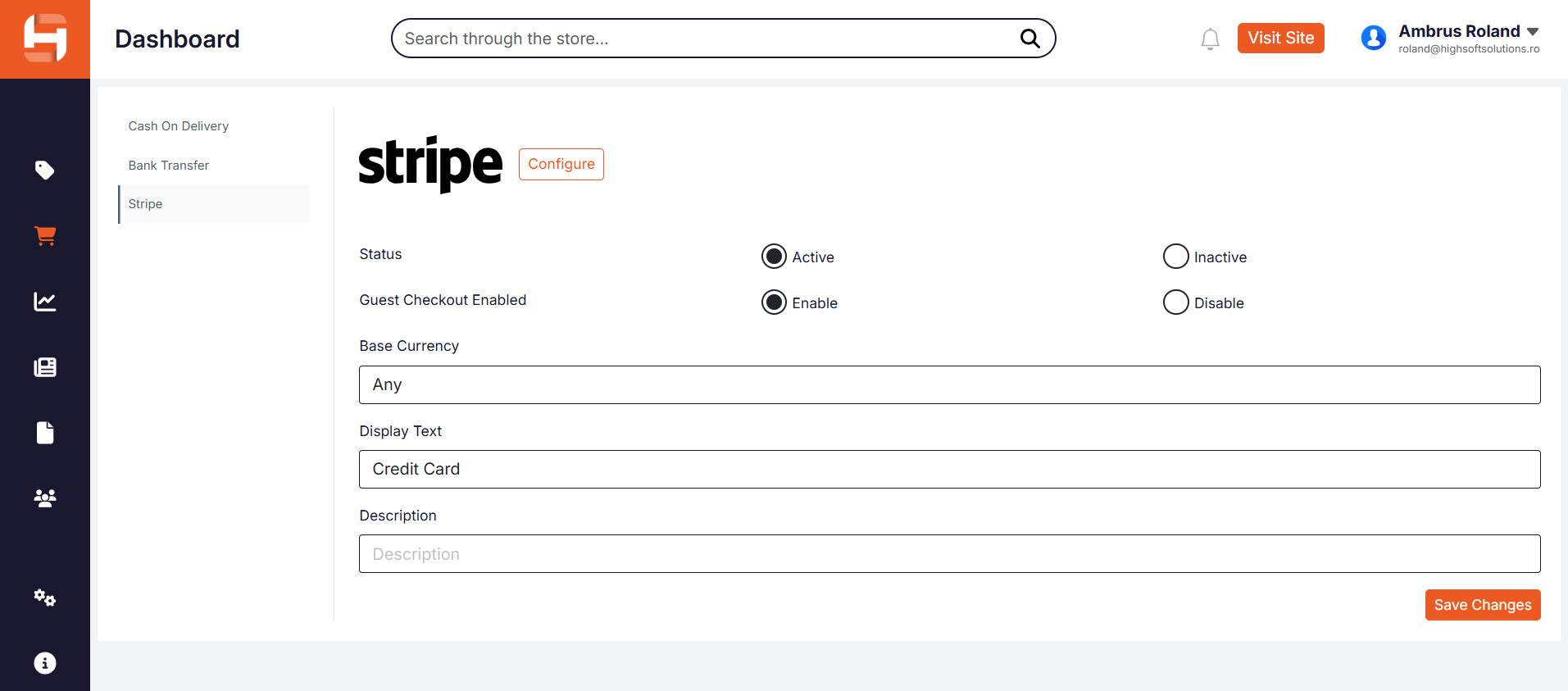
The Stripe payment method allows customers to complete payments using credit or debit cards through the Stripe payment gateway.

The Stripe payment method becomes available in the Payment Methods section after the Stripe integration has been enabled in:

Settings → Integrations

Once the integration is activated, authorized country administrators can configure the following settings:

  • Status – Enables or disables the Stripe payment method. When active, customers can select Stripe during checkout.
  • Guest Checkout Enabled – Determines whether the Stripe payment method is available to visitors who are not logged in. When enabled, guest users can complete payments without creating an account.
  • Base Currency – Defines the currency used for Stripe transactions. When set to Any, the system accepts payments in the currency configured for the webshop.
  • Display Text – The name of the payment method displayed to customers on the checkout page (for example, Credit Card).
  • Description – Optional text shown to customers in the payment methods section during checkout.

After modifying any settings, administrators must click Save Changes to apply the configuration.

The Shipping Methods module allows authorized country administrators to:

  • Manage available shipping methods

  • Translate the name of available shipping methods

Shipping methods are displayed to customers during the checkout process based on the configured shipping rules.

A shipping method will only be available if at least one corresponding shipping rule is configured.
If no shipping rule exists, the shipping method will not appear during checkout.

The Edit Shipping Method module allows authorized country administrators to:

  • Enable or disable the selected shipping method

  • Define the shipping method name in the local language of the country

The Name field is used to specify how the shipping method will appear to customers during the checkout process.

The Edit Shipping Rules module allows authorized country administrators to configure the conditions under which a shipping method becomes available during checkout.

The following fields are available:

  • Status – Enables or disables the selected shipping rule.

  • Zone – Specifies the geographical zone or continent. This field is optional.

  • Country – Specifies the country for which the shipping rule applies. This field is optional. If completed, the shipping method will only be available for the selected country.

  • State – Specifies the state, region, or county. This field is optional.

  • City – Specifies the city to which the shipping rule applies. This field is optional.

  • Delivery Time – Indicates the estimated delivery time for the shipment. This information is displayed to customers during checkout.

  • Rate Type – Defines how the shipping cost is calculated:

    1. Free Shipping – No shipping cost is applied.

    2. Fixed Rate – A predefined shipping fee is applied.

    3. Weight-Based Rate – Shipping cost is calculated based on the total weight of the order.

    4. Order Value-Based Rate – Shipping cost depends on the total value of the order.

  • Description – Additional information regarding the shipping rule. If completed, this text will be displayed on the checkout page as supplementary information related to the selected shipping rule.

  • COD Addition – An additional fee applied when the Cash on Delivery payment method is selected.

  • Created – Displays the date when the shipping rule was created.

Analytics

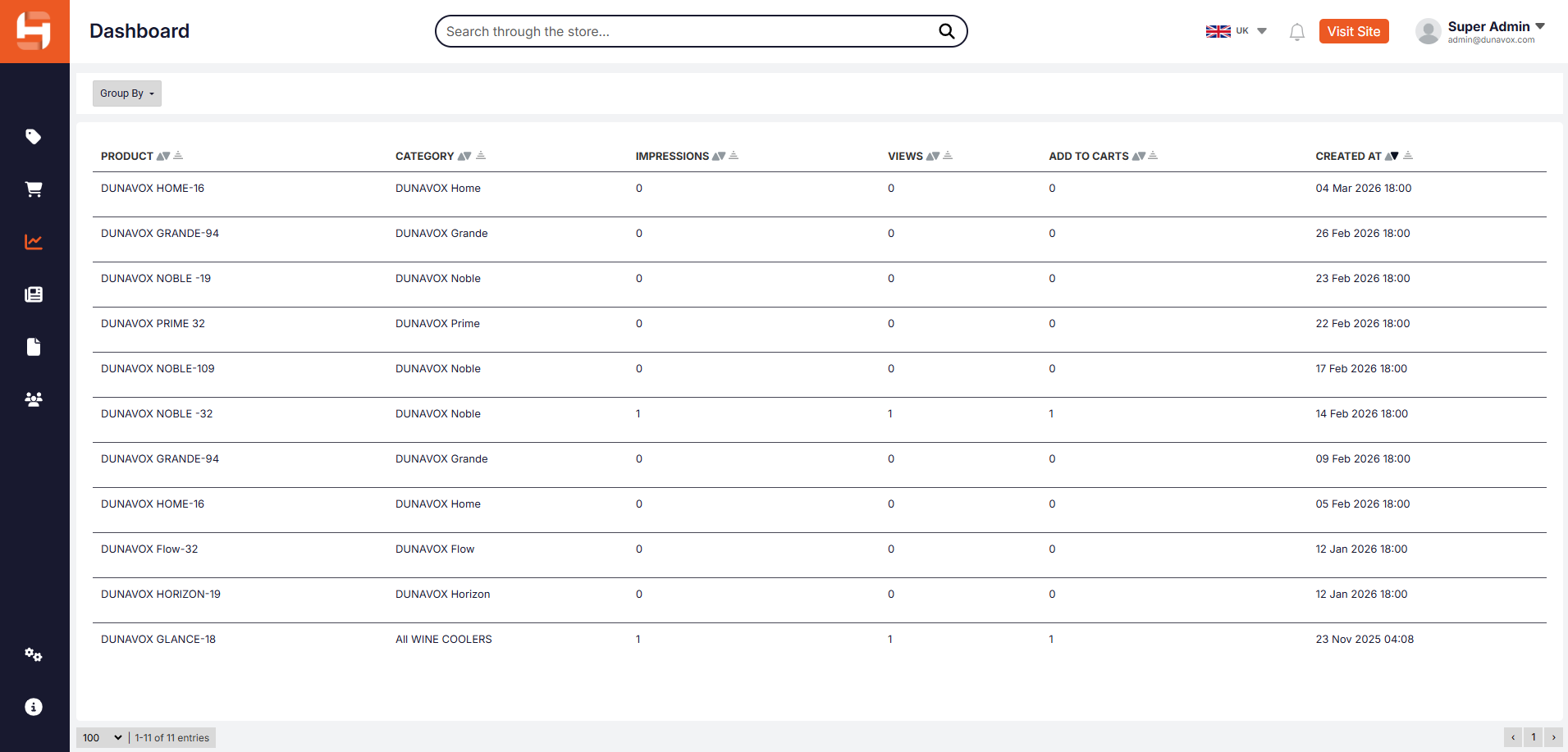
The Product reports module allows authorized country administrators to view product related reports:

  • Product: Displays the name of the product.
  • Category: Shows the product category to which the item belongs.
  • Impressions: The number of times the product appeared in product listings or search results on the website.
  • Views: The number of times the product page was opened by visitors.
  • Add to Carts: Indicates how many times the product was added to a shopping cart.
  • Created At: Shows the date when the product was created in the system.

The News reports module allows authorized country administrators to view published article related reports:

  • Article: Displays the name of the article.
  • Impressions: The number of times the article appeared in listings or search results on the website.
  • Views: The number of times the product page was opened by visitors.
  • Created At: Shows the date when the product was created in the system.

The Session reports module allows authorized country administrators to view visitor session related reports:

  • Visitors: Displays the number of visitors recorded during the session period.
  • Avg Session Length: Shows the average duration of user sessions on the website during the recorded period. The value is displayed in seconds.
  • Add to Carts: Indicates the number of times visitors added products to their shopping carts.
  • Begin Checkout: Shows how many times visitors initiated the checkout process.
  • Add Shipping Info: Indicates how many times visitors entered shipping information during the checkout process.
  • Created At: Displays the date and time when the session report record was generated.

COMING SOON...

The Analytics reports module allows authorized country administrators to view analytics reports:

  • Total Sales: Displays the total value of completed sales within the selected date range.
  • Sessions: Shows the total number of user sessions recorded on the website during the selected period.
  • Average Order Value: Represents the average value of customer orders calculated by dividing total revenue by the number of completed orders.
  • Total Order Value: Displays the total number of orders placed within the selected time period.
  • Conversion Rate: Shows the percentage of website sessions that resulted in a completed order.
  • Search Activity: Indicates the number of search actions performed by visitors on the website during the selected period.

The Analytics insights module allows authorized country administrators to view analytics reports:

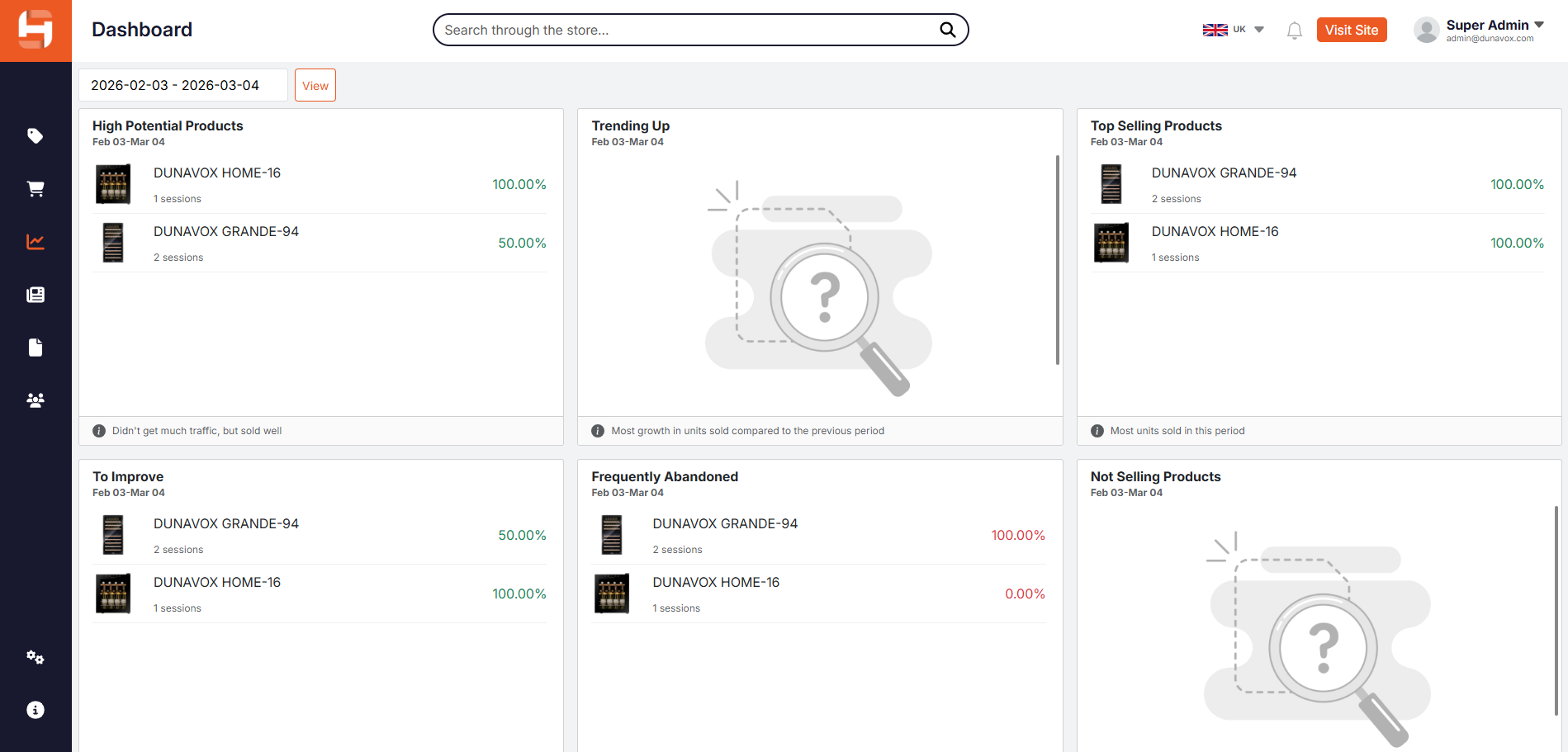
  • High Potential Products: Displays products that show strong sales performance despite having relatively low traffic. These products may benefit from increased visibility or promotion.
  • Trending Up: Shows products that are experiencing the highest growth in units sold compared to the previous period.
  • Top Selling Products: Lists the products with the highest number of units sold during the selected reporting period.
  • To Improve: Displays products that receive traffic but have lower conversion rates, indicating that improvements in pricing, product description, or presentation may be beneficial.
  • Frequently Abandoned: Shows products that are frequently added to carts but not completed in purchases. This may indicate pricing concerns, shipping costs, or other checkout-related issues.
  • Not Selling Products: Lists products that have received views but have not generated any sales during the selected reporting period.

News/Article Management

The News module allows authorized country administrators to view published articles and manage the translation of them:

  • Title: Displays the title of the published article.
  • Image: Shows the featured image associated with the article.
  • Views (Last 7 Days): Displays the number of times the article has been viewed during the last seven days.
  • SEO: Shows the SEO status of the article. A green indicator typically means that the article meets the basic SEO requirements configured in the system.
  • Published At: Displays the date and time when the article was published.

The News module allows authorized country administrators to view published articles and modify their translations.

The following fields are available when creating or editing a news article:

  • Title – Displays the title of the published article.
  • Image – Shows the featured image associated with the article.
  • Summary – A manually written short summary of the blog post. This text appears on the blog listing page as a preview of the article.
  • Content – The main content of the blog post or news article.
  • Format Content – Uses AI to automatically format the entire article content. This feature is useful when text has been copied and pasted from other sources and does not contain proper formatting.
    Note: This feature consumes AI credits.

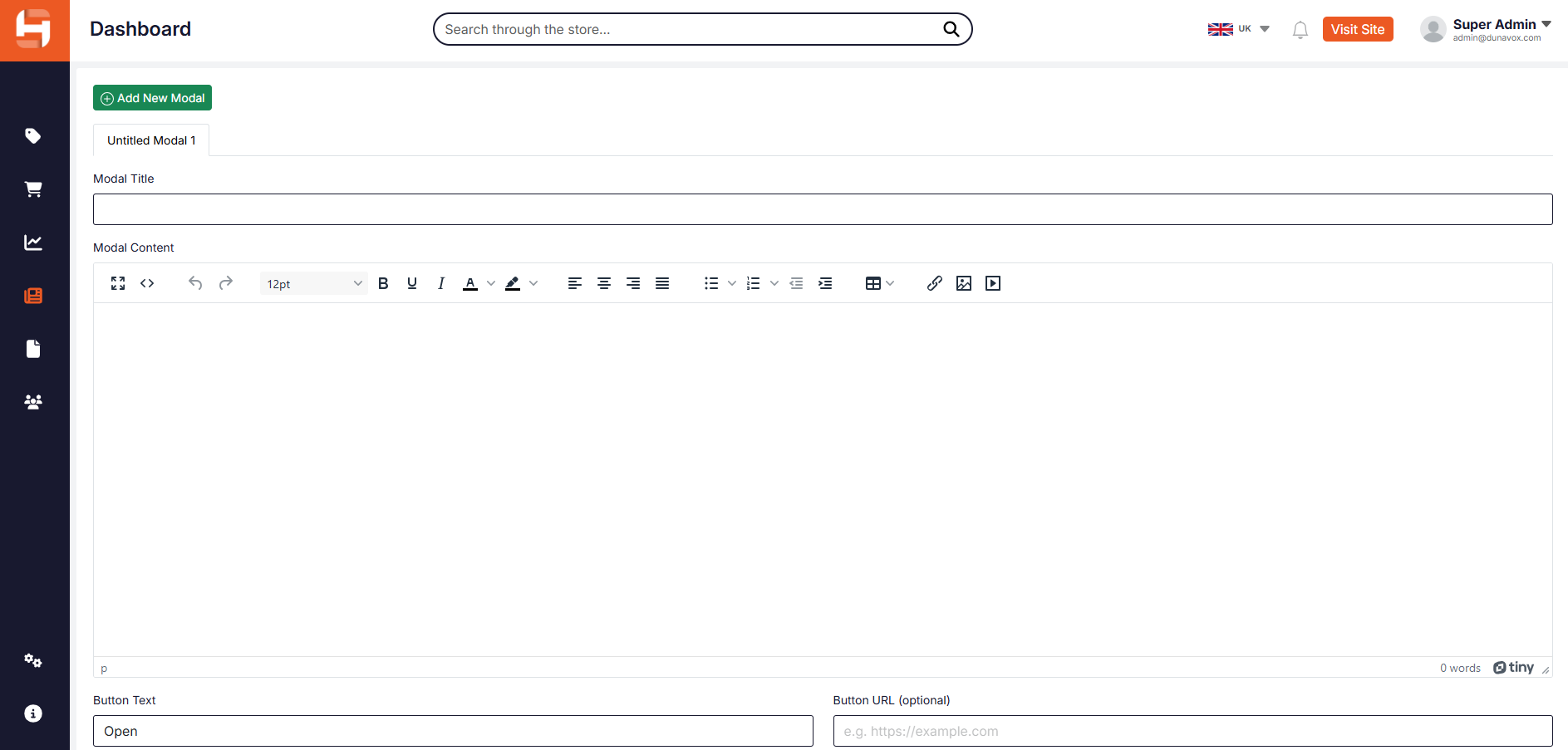
The Promo popup module allows authorized country administrators to manage the promotional popups:

  • Untitled Modal 1: Tab style listing of modals/popups.
  • Modal Title: Defines the title of the popup modal.
  • Modal Content: Allows the administrator to create and edit the content displayed inside the popup. The editor supports formatted text, links, and media elements.
  • Button Text: Defines the label displayed on the action button inside the modal.
  • Button URL (optional): Specifies the destination URL that will open when the modal button is clicked.
  • Width: Defines the width of the popup window in pixels.
  • Height: Defines the height of the popup window in pixels.
  • Visibility Start Date: Specifies the date from which the popup will become visible to website visitors.
  • Visibility End Date: Specifies the date after which the popup will no longer be displayed.
  • Banner Image: Allows the administrator to upload or select the image displayed inside the popup modal.
  • Show Delay (milliseconds): Defines the delay before the popup is automatically displayed after a visitor opens the website.
  • Show Again Closed Popup: Determines whether the popup should appear again after a visitor closes it. This setting controls how frequently the popup is shown.


Pages

The Navigation Menu module allows authorized country administrators to manage the translations of menu items displayed on the website.

Administrators can click on any menu element and edit its Label field to modify the displayed text in the local language.

Changes made to the label will update how the menu item appears on the frontend website.

The menu structure (including the hierarchy and order of menu items) is managed centrally by Dunavox Kft. and must not be modified by country administrators.

Only the translated labels of existing menu items should be edited in this section.

The Footer Links module allows authorized country administrators to manage the translations of links displayed in the website footer.

Administrators can click on any footer link and edit its Label field to modify the displayed text in the local language.

Changes made to the label will update how the link appears on the frontend website footer.

The footer structure (including the list and order of links) is managed centrally by Dunavox Kft. and must not be modified by country administrators.

Only the translated labels of existing footer links should be edited in this section.

The Main Slider module allows authorized country administrators to manage the translated content of homepage slider elements.

Administrators can edit the following elements for each slide:

  • Title – the main headline displayed on the slider
  • Description – the supporting text content displayed on the slider
  • Button Text – the label of the optional call-to-action button
  • Link – the destination URL for the button (if used)

Additionally, administrators can update the images used for each slide (desktop and optional mobile versions).

Changes made in this section will update the visible content of the homepage slider for the selected country/language.

The slider structure and behavior are managed centrally by Dunavox Kft. and should not be altered.

The Terms of Use module allows authorized country administrators to manage the translated content of the Terms of Use page.

Administrators can edit the following:

  • Title – the page title displayed on the frontend
  • Content – the full text of the Terms of Use, including formatting and structure

Changes made in this section will update the Terms of Use page for the selected country/language.

The SEO metadata for this page is generated automatically. However, it can be reviewed and adjusted if necessary by clicking the SEO Meta Data button.

Only content translation and formatting should be modified in this section.

The Privacy Policy module allows authorized country administrators to manage the translated content of the Privacy Policy page.

Administrators can edit the following:

  • Title – the page title displayed on the frontend
  • Content – the full text of the Privacy Policy, including formatting and structure

Changes made in this section will update the Privacy Policy page for the selected country/language.

The SEO metadata for this page is generated automatically. However, it can be reviewed and adjusted if necessary by clicking the SEO Meta Data button.

Only content translation and formatting should be modified in this section.

The Contact Page module allows authorized country administrators to manage the contact details and social media links displayed for the selected country.

Administrators can edit the following:

  • Phone – the contact phone number
  • Address – the physical address
  • E-mail – the contact email address
  • Social Media Links – including Facebook, Instagram, and other platforms

Changes made in this section are automatically reflected on the frontend, including:

  • The website header
  • The Contact page

Only country-specific contact information and links should be modified in this section.

The Other pages module allows authorized country administrators to view and manage the translations of existing website pages.

This section includes pages such as informational content, legal pages, and other static sections of the website.

Administrators can:

  • View existing pages
  • Edit the translated content of pages
  • Create localized versions of page content for their country
  • Export the page list in Excel or CSV format

Each page entry displays:

  • Title – The name of the page
  • Updated – The date and time of the last modification
  • Created – The date when the page was created
  • SEO – Indicates the SEO status of the page

Page structure and original content are managed centrally by Dunavox Kft. Country administrators can only modify the translated content, similar to the workflow used for pages such as the Privacy Policy.

Changes made in this section are reflected on the localized version of the website.

The Edit Page screen allows administrators to modify the translated content of an existing website page.

The following fields are available:

  • Title – Displays the page title. This is typically predefined and should only be adjusted for translation purposes.
  • Content – The main body of the page. Administrators can translate and format the content using the editor. This section supports text styling, lists, links, images, and other formatting options.
  • Visibility – Determines whether the page is visible (Visible) or hidden (Hidden) on the website.
  • Page Template – Defines the layout used for the page. This setting is typically predefined and should not be modified unless instructed.

Page structure and original content are managed centrally by Dunavox Kft. Administrators should only modify the translated content of the page.

After making changes, the updated content will be reflected on the localized version of the website.

The Add Page screen allows administrators to create a new custom page with textual content that can be used anywhere on the website.

The following fields are available:

  • Title – Defines the name of the page and is typically used to generate the page URL.
  • Content – The main body of the page. Administrators can add and format text using the editor (headings, lists, links, images, etc.).
  • Visibility – Determines whether the page is visible (Visible) or hidden (Hidden) on the website.
  • Page Template – Defines the layout used for the page. In most cases, the Default template should be used unless specified otherwise.

Newly created pages can be accessed on the website via their URL and can be linked from other sections (menus, buttons, etc.) if needed.

For proper placement, linking, or usage of the page within the website structure, it is recommended to consult Dunavox Kft.

SEO metadata is generated automatically, similar to other pages, but it can be reviewed and manually adjusted if necessary.

Users

The system distinguishes between the following user types:

  • User / Admin Platform User – An administrator who has access to the Dunavox admin platform and can manage website content, products, or system settings.
  • Partner – An official Dunavox partner company, such as kitchen studios or distributors, that collaborates with Dunavox and may have access to partner-related features.
  • Customer – A regular end-user who has placed an order through the Dunavox webshop. 

The Users module allows administrators to manage all user accounts that have access to the Dunavox website administration panel:

  • Name: Displays the full name of the user.
  • Email: Shows the email address associated with the user account. This email is used for login and system notifications. The registered email address has to be unique to the user.
  • Group: Indicates the permission group assigned to the user (for example: administrator, marketing specialist, shop manager). The assigned group determines the user’s access rights within the system.
  • Status: Shows whether the user account is currently active or inactive. Only active users are able to log into the administration panel. The account is activated automatically after completing registration.
  • Last Seen: Displays the last recorded time when the user accessed the system.
  • Date: Shows the date and time when the user account was created or last modified.

The password can be changed by entering the new password in the Change Password field and confirming it in the Repeat Password field. After entering the new password in both fields, click Save Changes to apply the update.

The Partners module allows administrators to manage partner companies associated with the Dunavox platform:

  • Name: Displays the name of the partner contact person.
  • Company: Indicates the company or organization that the partner represents.
  • Phone Number: Shows the contact phone number of the partner.
  • Email: Displays the email address associated with the partner.
  • Status: Indicates whether the partner entry is currently active or inactive in the system.
  • Date: Shows the date and time when the partner entry was created or last updated.

The Customers module allows administrators to view and manage customer information collected through the Dunavox website or webshop:

  • Name: Displays the full name of the customer.
  • Phone Number: Shows the phone number associated with the customer.
  • Email: Displays the email address of the customer.
  • Date: Indicates the date and time when the customer record was created in the system

Settings

The General Settings module allows country administrators to configure the primary contact and company information displayed on the local Dunavox website.

These settings define the official contact details used across the frontend website, including:

  • Contact pages
  • Website footer
  • Customer support information
  • Google Maps location
  • Sales contact information

Each country partner is responsible for maintaining accurate and up-to-date information in this section.

The Stripe Integration section allows administrators to connect the webshop to the Stripe payment gateway.

The integration must be configured correctly before the Stripe payment method becomes available in the Payment Methods module.

The following settings are available:

  • Status – Enables or disables the Stripe integration.
  • Mode – Defines whether the system operates in Live mode (real payments) or Sandbox mode (test payments).
  • Publishable Key – The public API key provided by Stripe. This key is used by the frontend checkout to securely initiate payment transactions.
  • Secret Key – The private API key provided by Stripe. This key is used by the server to authenticate payment requests with Stripe.

After entering the required API keys and selecting the appropriate mode, administrators must click Save Changes to activate the integration.

Once the Stripe integration is successfully configured and activated, the Stripe payment method becomes available in the Payment Methods section, where additional checkout-related settings can be configured.

The Mail Translations section allows administrators to modify the text labels and messages used in system emails and contact forms.

This module is used to adapt the platform to the local language of each country version. The values entered here determine how form fields and email-related messages are displayed to users on the website.

Each entry contains:

  • Key – the internal system identifier (not editable)
  • Value – the text displayed to the user or included in emails

Administrators should modify the Value fields in order to translate or adjust the displayed messages.

Changes take effect immediately after saving and will apply to the corresponding forms or automated emails on the website.

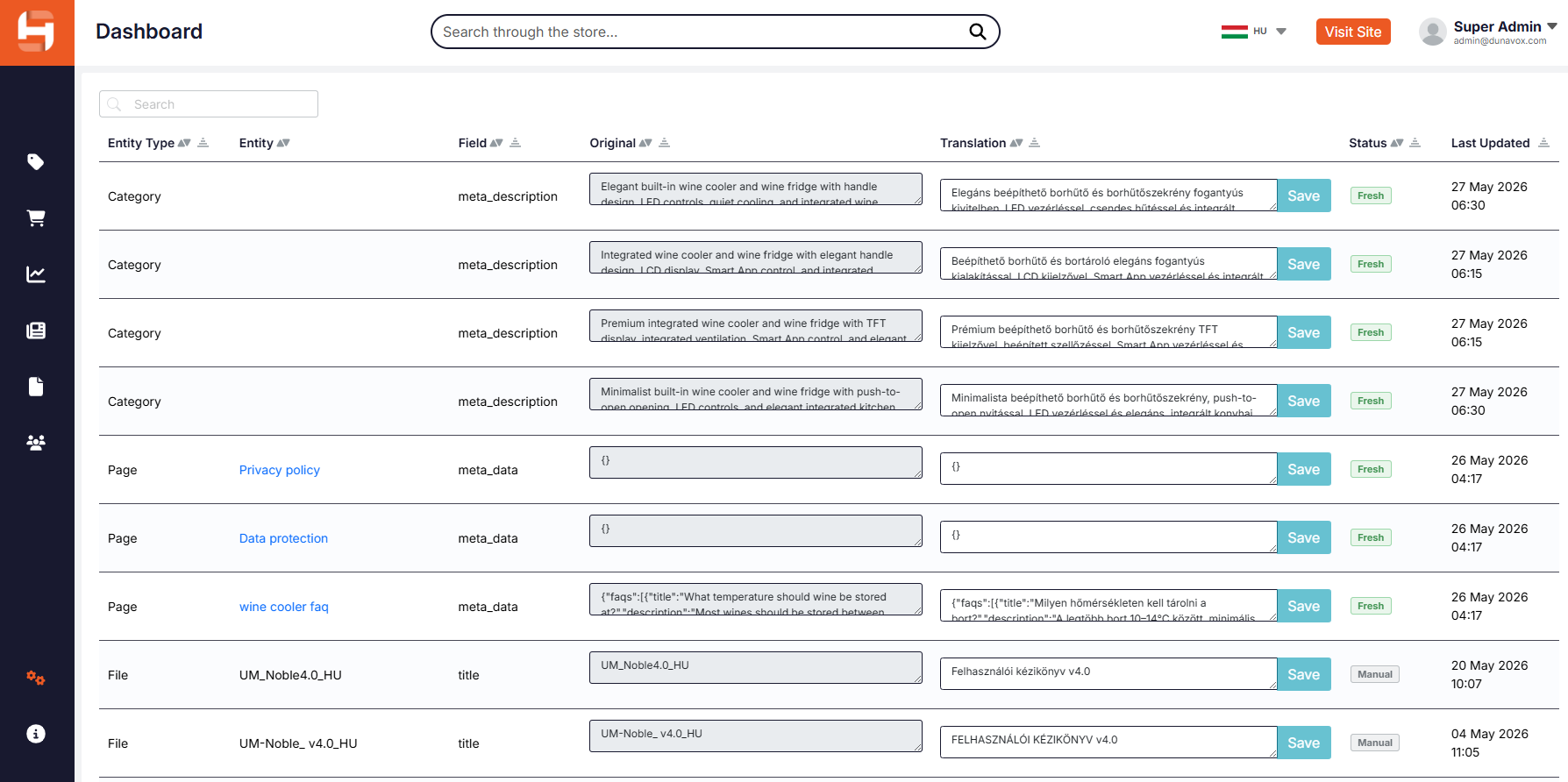
The Site Translations section allows administrators to modify the text labels used throughout the website interface. These translations control how standard system phrases, buttons, and interface elements appear on the frontend of the country-specific website.

The table contains the following columns:

  • Key – internal system identifier for the text element (not editable)
  • Original – the default system text
  • English – the editable field where the translated or customized text can be entered

Administrators can modify the English field to adapt the website interface to the local language or preferred terminology. Each change must be saved individually using the Save button.

These translations affect elements such as navigation labels, form fields, buttons, account pages, checkout elements, and other standard website interface texts.


The Service Product Registrations section displays all registered Dunavox products submitted through the product registration form on the website.

This screen allows administrators to view information provided by customers when registering their product for service, warranty tracking, or support purposes.

Each entry contains the following information:

  • Product – the registered product model
  • Serial Number – the unique serial number of the product
  • First Name / Last Name – the customer’s name
  • Email – the customer’s contact email
  • Phone – the customer’s phone number
  • Purchase Date – the date when the product was purchased
  • Dealer – the retailer or distributor from whom the product was purchased
  • Registered At – the date and time the product was registered in the system

Administrators can use this list to review product registrations, verify warranty information, and reference customer details when handling service or support requests.

Logs

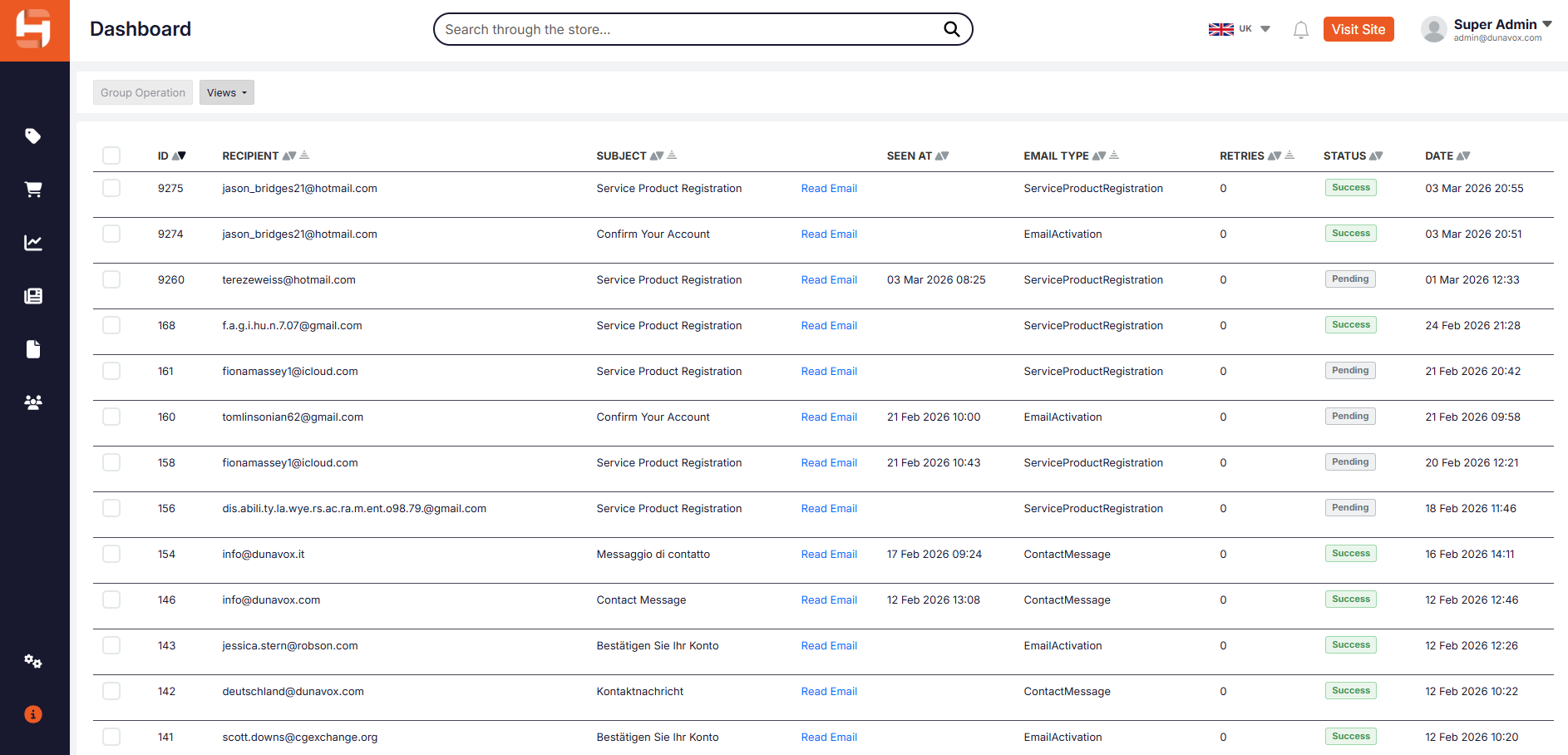
The Email Logs module allows administrators to monitor all emails sent by the Dunavox platform:

  • ID: Displays the unique identification number assigned to the email record.
  • Recipient: Shows the email address of the recipient to whom the message was sent.
  • Subject: Displays the subject line of the email message.
  • Read Email: Displays the content of the email message.
  • Seen At: Indicates the date and time when the recipient opened or viewed the email, if this information is available.
  • Email Type: Specifies the type or category of the email generated by the system (for example: account activation, product registration, or contact message).
  • Retries: Shows the number of attempts made by the system to send the email.
  • Status: Indicates the delivery status of the email, such as successful delivery or pending.
  • Date: Displays the date and time when the email was generated and sent by the system.

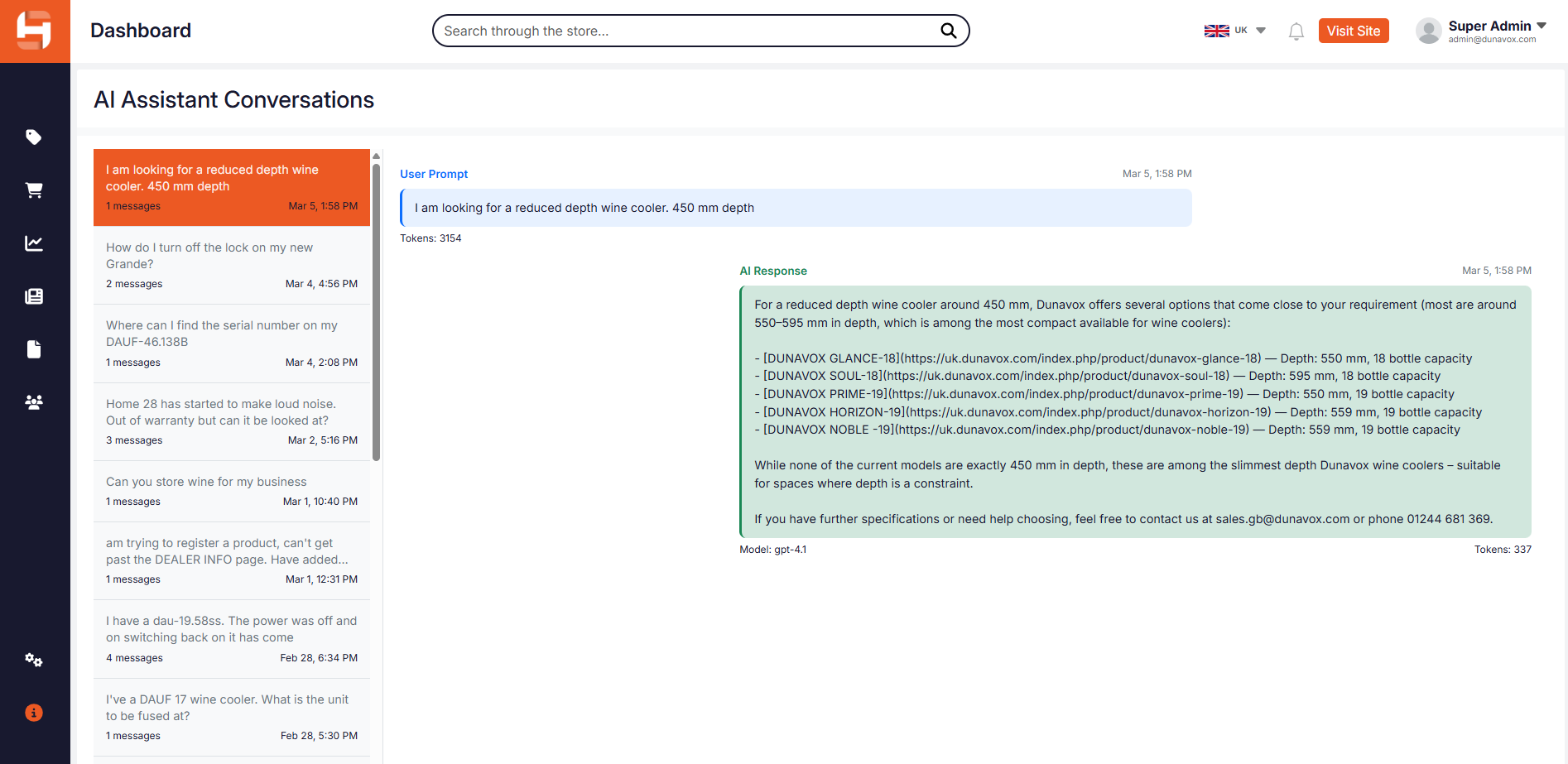
The AI Assistant Conversations module allows administrators to monitor interactions between website visitors and the Dunavox AI assistant:

  • Conversation List: Displays a list of AI assistant conversations initiated by users. Each entry shows a preview of the user’s message, the number of messages in the conversation, and the date and time of the interaction.
  • User Prompt: Shows the message or question submitted by the user to the AI assistant.
  • AI Response: Displays the response generated by the AI assistant based on the user’s request.
  • Tokens: Indicates the number of processing tokens used for generating the AI response, which reflects the complexity and length of the interaction.
  • Model: Shows the AI model used to generate the response.
  • Date and Time: Displays the timestamp when the conversation occurred.